

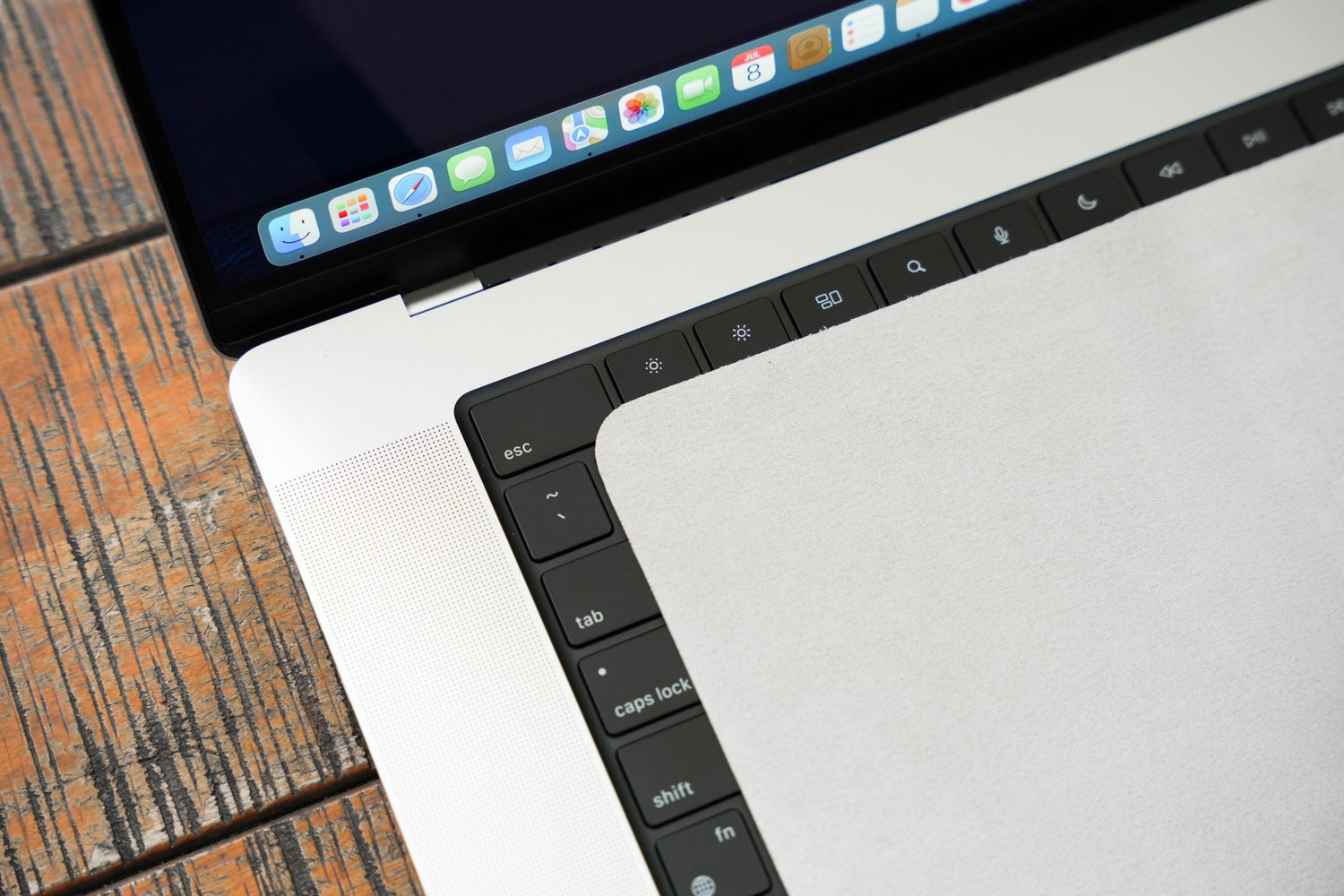
Screen marks on laptops are a common nightmare for both new and long-time users. These blurry imprints from keys, oil smudges, or dust not only make the device look bad but also reduce its resale value.

This article will help you understand all the causes of laptop screen marks, how to prevent them from the start, and how to deal with them once they appear.
Causes of Screen Marks
Physical Pressure When Closing the Laptop
- Stuffing the laptop into an overly tight backpack, compressed by books or heavy items
- Leaning on or placing heavy objects like books, newspapers, or bags on the laptop's lid when it's closed
- Closing the laptop forcefully or unevenly, causing the screen frame to bend
Dust and Debris on the keyboard
Dust, crumbs, or other debris left on the keys will imprint onto the screen surface when the laptop is closed.
Hand Oil and Sweat
Oil and sweat can stick to the keys after typing if not cleaned. Moreover, immediately closing the laptop after use will further transfer this oil to the screen. The warm, humid environment allows oil residue to adhere more firmly to the laptop screen.
Long-term Friction from the keyboard
Each time the laptop is opened and closed, it creates slight friction. Over time, this can cause blurry, shiny patches on the screen that match the shape of the keys.
Temperature Changes and Humidity
Many users have a habit of leaving their laptop in a hot car trunk or suddenly moving it from an air-conditioned office to a hot outdoor environment. This causes moisture to condense, creating conditions for dust and oil to accumulate.
Poor Quality Screen Protectors
Many people are advised to apply a screen protector immediately after purchase but don't pay attention to the quality. Additionally, some devices may have low-quality screen protectors that easily attract oil, sweat, and dust, making marks more visible and difficult to clean over time.
Preventing Screen Marks for New Laptop Owners
Use a keyboard cover or microfiber cloth
Simply use an ultra-thin silicone keyboard cover or a thin microfiber cloth, placed between the keyboard and the screen, to prevent dust and oil from direct contact.
Note: Choose cloths made of standard, soft, absorbent microfiber that fit your keyboard size, and wash them regularly to keep them clean.

Regular keyboard cleaning
Wipe the keys with a dry or slightly damp microfiber cloth. You can also use specialized cleaning solutions and air blowers to remove dust and sweat from the keyboard.

Avoid stuffing your laptop into an overly tight backpack
Prioritize choosing a backpack/bag with a dedicated shock-proof compartment. Also, avoid overfilling it or placing heavy objects on your laptop for extended periods.
Close the laptop gently
Carefully use both hands to close the screen evenly. Minimize forceful closing to ensure durability.
Avoid excessively high temperatures and humidity
During hot summers, it's especially important not to leave your laptop in a car trunk or other hot areas. Additionally, high-humidity areas like near humidifiers or standing water are also not good for laptops.
How to Deal with Existing Screen Marks
Basic Cleaning
After disconnecting from the power source, you can use a clean microfiber cloth combined with a specialized screen cleaning solution. Note on cleaning method: wipe gently in circular motions to avoid scratching.

Removing Stubborn Oil and Sweat Stains
Use a specialized cleaning solution. Then, gently blot with a cloth and wipe carefully. It's crucial to test on a small corner first to avoid damaging the coating.
Dealing with Long-standing Faint Glossy Marks
These are often minor abrasions or deeply absorbed oil stains that cannot be completely removed by wiping. Solutions:
- Apply an anti-glare/matte film: helps obscure the marks
- Apply a new screen protector: covers the entire screen
- Replace the screen: when the marks are too severe and bothersome
Additional tips to keep your laptop looking new for a long time:
- Clean the screen and keyboard regularly (once or twice a week)
- Wash your hands before using the device
- Limit eating and drinking while working on your laptop
- Always check for foreign objects on the keyboard before closing

- Use a high-quality shockproof sleeve when traveling

Quick Answers
Do laptop screen marks damage pixels? Typically, these marks are only an aesthetic issue; however, they can cause inconvenience during use and reduce the device's value when reselling.
Do I need to buy a keyboard cloth? The answer is yes, a keyboard cloth is highly recommended – it's a cost-effective solution for thorough laptop protection.

Does a screen protector help prevent marks? Yes, a screen protector directly reduces oil and sweat buildup and is easier to clean. You should choose a high-quality, anti-glare type to obscure old marks (if any).
Laptop screen marks are not only unsightly but also very difficult to remove completely once deeply ingrained. The best solution is prevention from the start: keep the screen and keyboard clean, use a keyboard cloth, and be careful when closing and carrying your laptop.





Leave a comment
This site is protected by hCaptcha and the hCaptcha Privacy Policy and Terms of Service apply.